
HVAC jobs, inside HubSpot

From the reported fault to the job report, every job stays on the HubSpot ticket.

30-minute demo · No commitment

TYPICAL JOBS
  • Boiler failure, 3rd floorRepair
  • Air conditioning not cooling, office 12Repair
  • Ventilation system checkMaintenance
  • Leak on circulation pumpRepair

THE PROBLEM

Where HVAC teams lose time

Emergencies and planned jobs collide

An urgent fault lands between jobs already booked. The schedule shows each technician's day.

Technicians arrive without context

The ticket's address, notes and attachments arrive in the technician's app.

Month end spent rebuilding costs

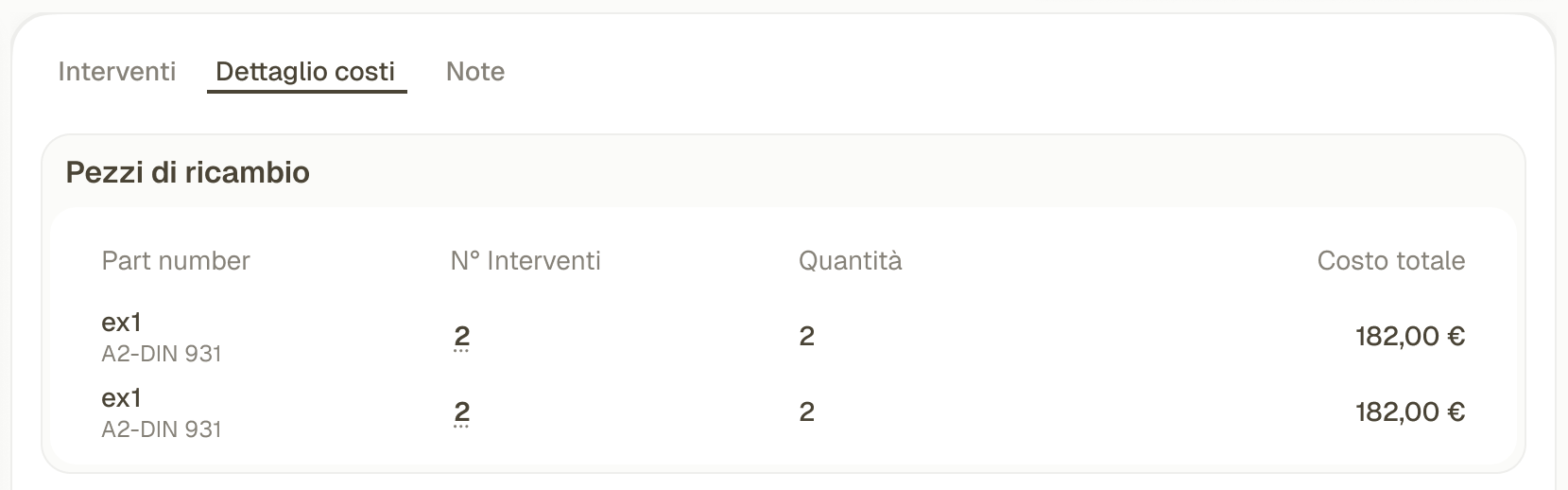
Parts and job costs are logged on the ticket: labor, transport, travel, taxes.

Fieldup links the job, technician updates and report to the HubSpot ticket.

From customer request to completed job

Fieldup is built on HubSpot. Every piece of field data stays there, ready for your dashboards, workflows and third-party tools.

Step 1 of 6

Request

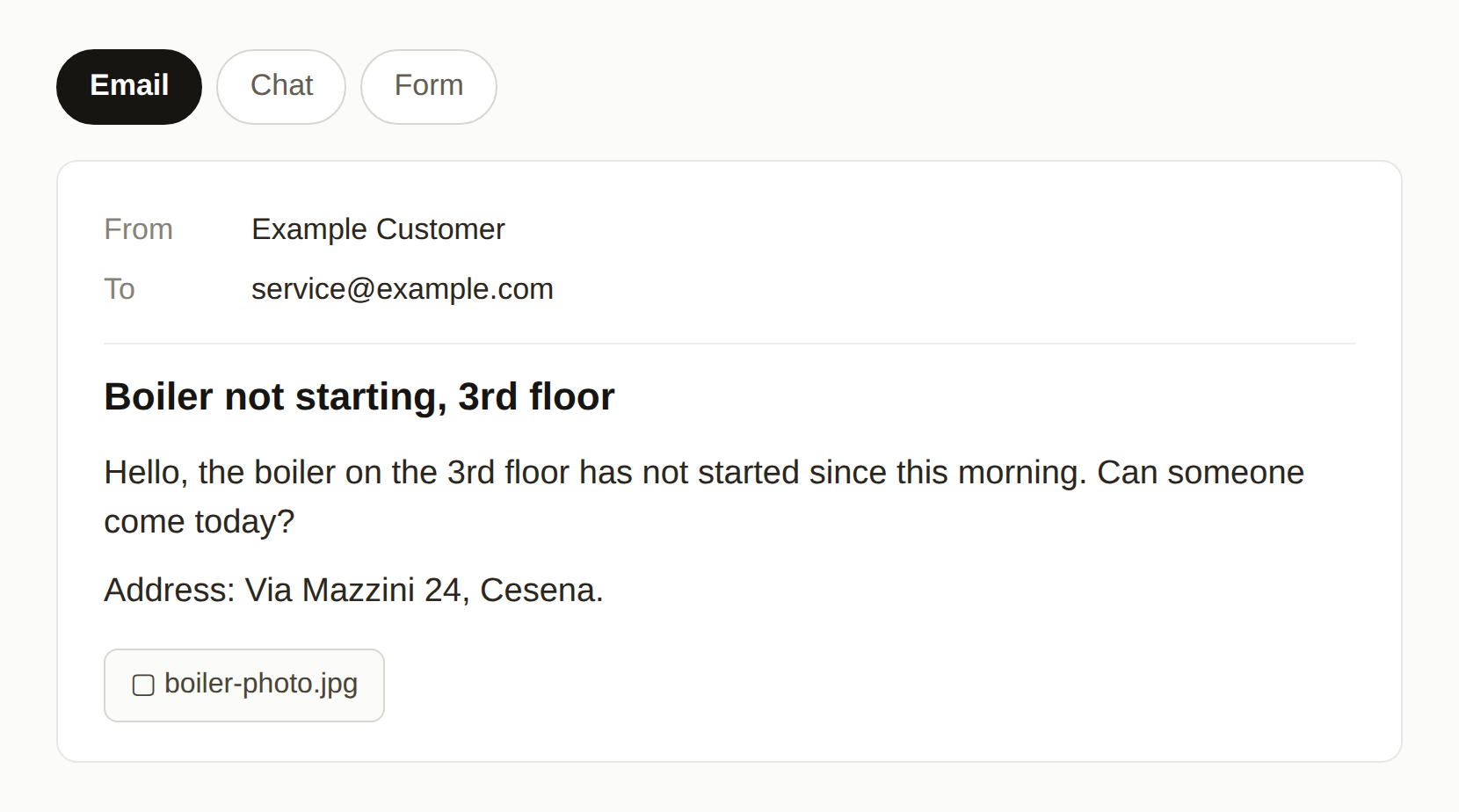
A customer request comes in by email, chat or form.
WHEREYour inbox or website
See it in the product
ILLUSTRATION
A new field service request arrives
Step 2 of 6

HubSpot ticket

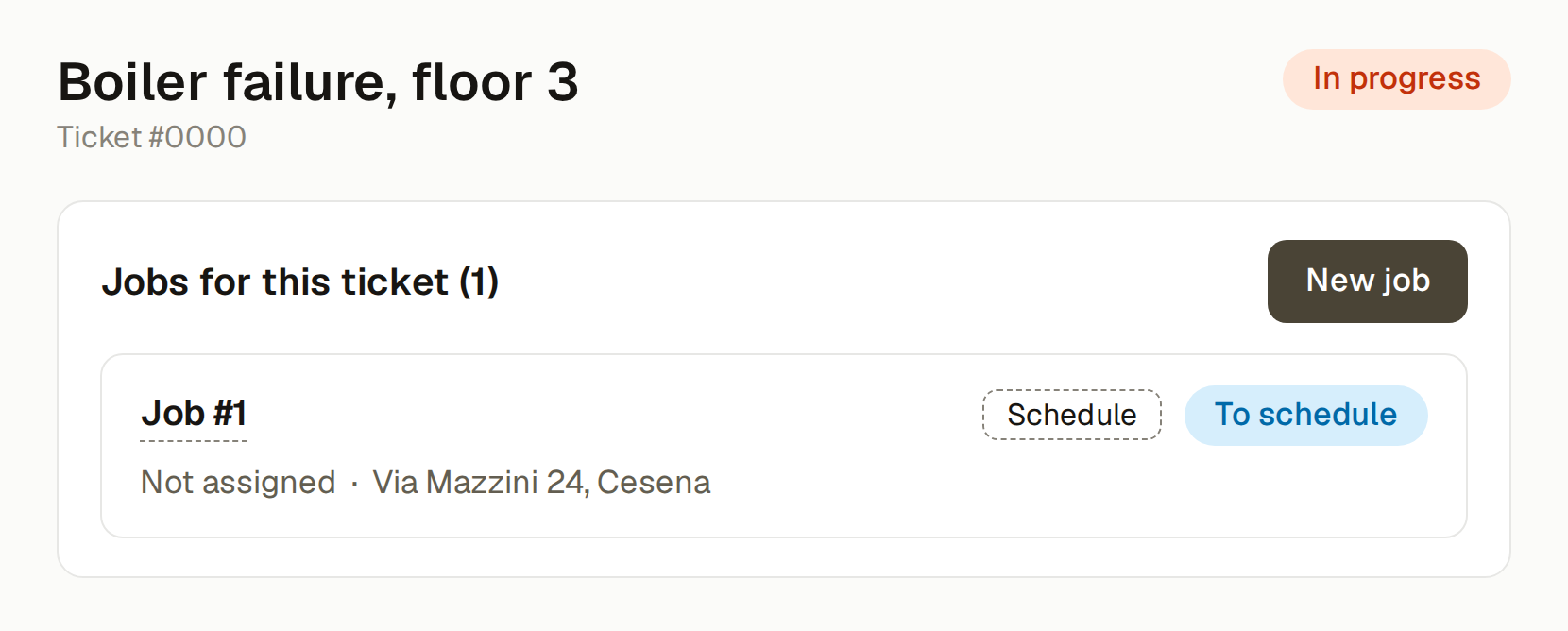
The request becomes a ticket in HubSpot. From the ticket you create the job, without leaving the CRM.
WHEREHubSpot
See it in the product
ILLUSTRATION
A HubSpot ticket with a linked field service job
Step 3 of 6

Assignment

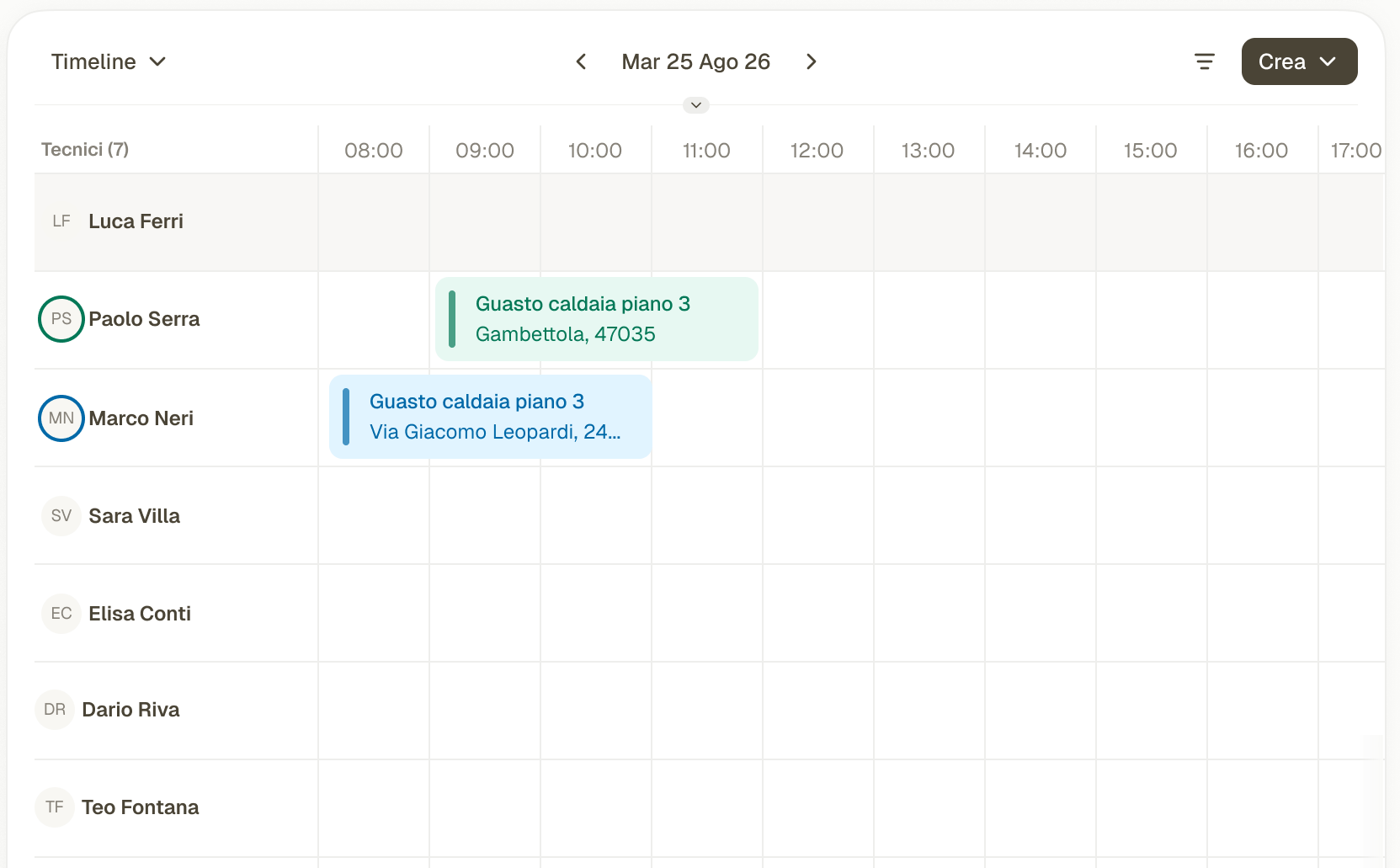
The back office picks the technician and the time. The job appears in the technician's app.
WHEREFieldup back office
See it in the product
SCHEDULE
Technicians assigned to scheduled jobs
Step 4 of 6

On site

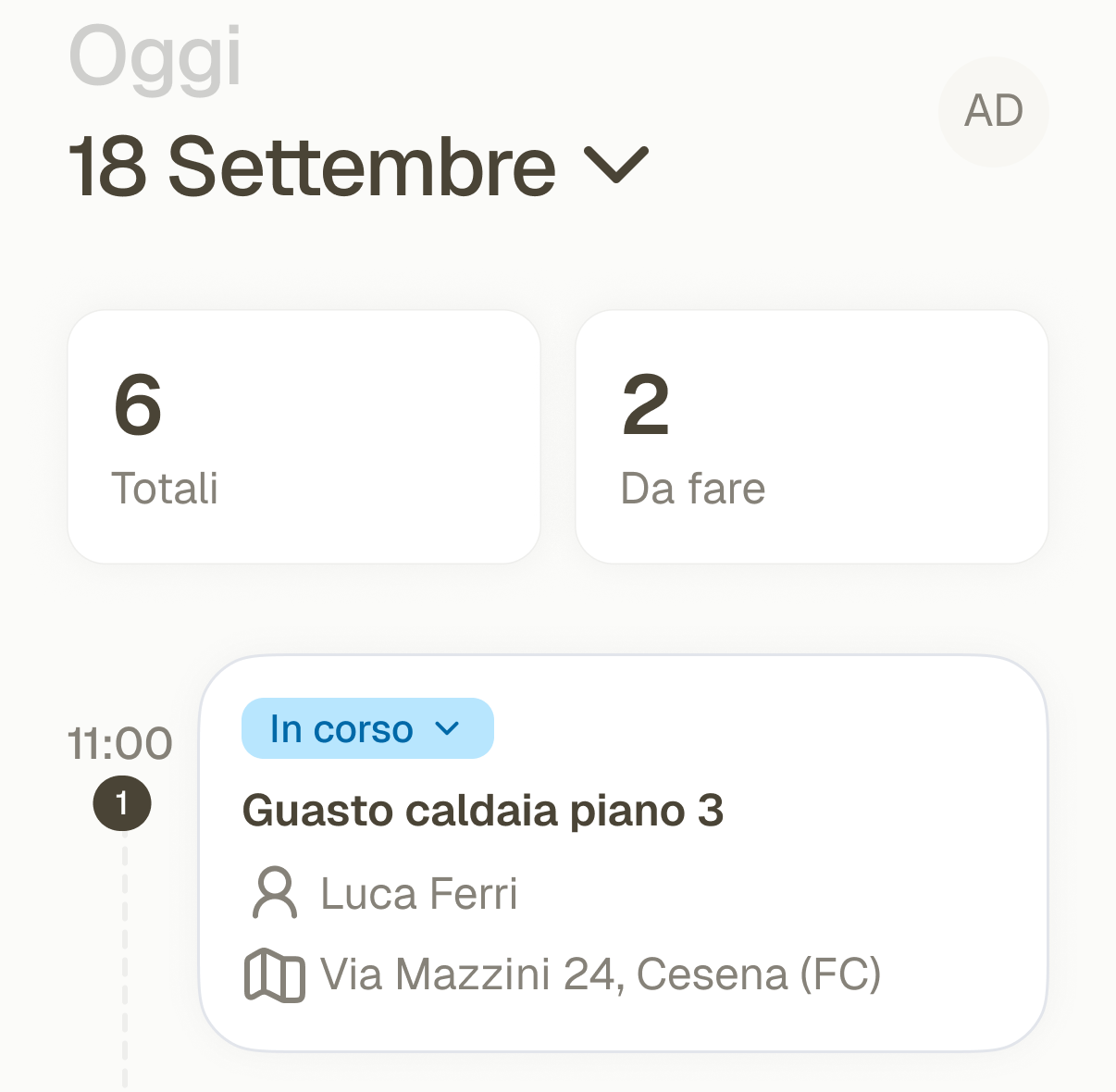
The technician opens the job on their phone and updates its status.
WHERETechnician app
See it in the product
TECHNICIAN APP
A technician views a job on a mobile phone
Step 5 of 6

Job report

The technician fills in the job report. Spare parts and costs are added to the job.
WHERETechnician app and back office
See it in the product
COST SUMMARY
A job cost summary with labor, parts and travel
Step 6 of 6

Ticket updated

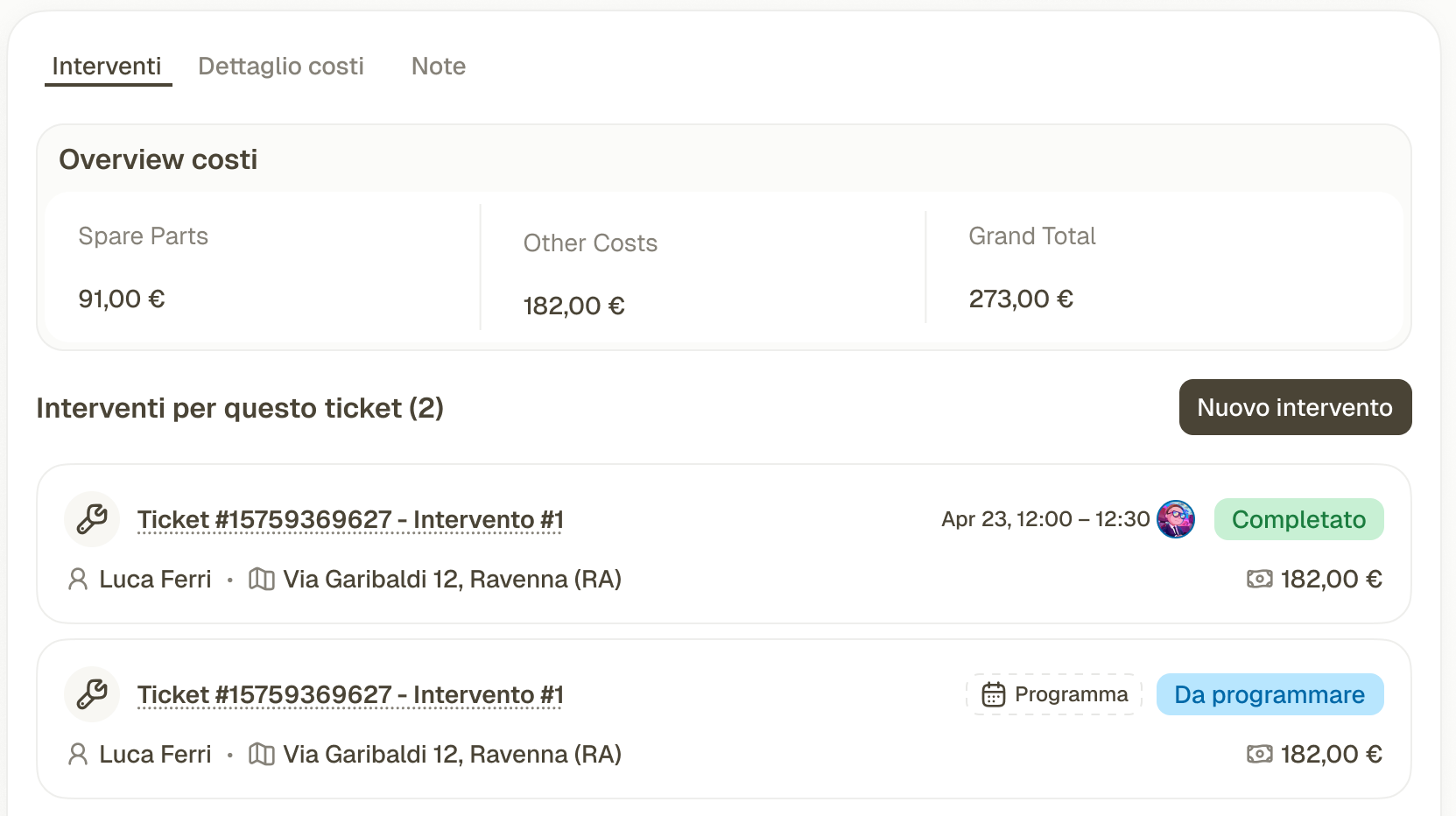
The job report and costs show up on the ticket, in HubSpot. Nothing is typed twice.
WHEREHubSpot
See it in the product
JOBS
Completed jobs and reports linked to HubSpot tickets
Request
Step 1 of 6

Request

A customer request comes in by email, chat or form.

WHEREYour inbox or website
See it in the product
ILLUSTRATION
A new field service request arrives
HubSpot ticket
Step 2 of 6

HubSpot ticket

The request becomes a ticket in HubSpot. From the ticket you create the job, without leaving the CRM.

WHEREHubSpot
See it in the product
ILLUSTRATION
A HubSpot ticket with a linked field service job
Assignment
Step 3 of 6

Assignment

The back office picks the technician and the time. The job appears in the technician's app.

WHEREFieldup back office
See it in the product
SCHEDULE
Technicians assigned to scheduled jobs
On site
Step 4 of 6

On site

The technician opens the job on their phone and updates its status.

WHERETechnician app
See it in the product
TECHNICIAN APP
A technician views a job on a mobile phone
Job report
Step 5 of 6

Job report

The technician fills in the job report. Spare parts and costs are added to the job.

WHERETechnician app and back office
See it in the product
COST SUMMARY
A job cost summary with labor, parts and travel
Ticket updated
Step 6 of 6

Ticket updated

The job report and costs show up on the ticket, in HubSpot. Nothing is typed twice.

WHEREHubSpot
See it in the product
JOBS
Completed jobs and reports linked to HubSpot tickets

What HVAC teams use

Assign technicians in the calendar

The schedule shows each technician's day, urgent requests and planned work.

SCHEDULE
Technician job schedule

The job arrives on the technician's phone

The ticket's address, notes and attachments arrive in the technician's app.

TECHNICIAN APP
Fieldup technician app on a phone

Record the job report, parts and costs

Parts and job costs are logged on the ticket: labor, transport, travel, taxes.

JOB REPORT AND PARTS
Job report and cost summary

Every HVAC job, on its HubSpot ticket

Follow a job in Fieldup: create it from a ticket, assign a technician and review the completed report.

Request a free demo

30-minute demo · No commitment

What you need

  • A HubSpot View-Only seat for every Fieldup user (Starter tier or above)
  • The Appointment object, or a custom object in your portal
  • A HubSpot form for the job report

Fieldup setup and licenses

Do my technicians need a HubSpot license?

Yes. Every Fieldup user needs a HubSpot View-Only seat. View-Only seats are available from the Starter tier.

Which HubSpot object are jobs mapped to?

To the Appointment object, or to a custom object in your portal. Fieldup remaps the fields during onboarding.

How does onboarding work?

It is guided, in five steps: HubSpot object, job report form, field mapping, default values, and completion.

See Fieldup on your own jobs

30 minutes on the product, with examples from your trade.

WHAT HAPPENS NEXT
  1. 01You send your contact details
  2. 02We contact you to arrange the demo
  3. 03We choose examples for your industry
  4. 04We walk through a job in Fieldup
REQUEST A DEMO* REQUIRED FIELDS